// setup guide

How to use TaskGlot

TaskGlot is a Telegram task board with a built-in Mini App cockpit. Your group stays a clean board — everyone does their work inside the app, in their own language.

Open TaskGlot
// overview

What is TaskGlot?

TaskGlot is a Telegram bot that turns any group into a task accountability board. You assign work, workers acknowledge and complete it, and the bot chases everything to done — with reminders, escalation, and photo proof.

Every task and reply is auto-translated into each person's own language. Thai, Burmese, Khmer, Ukrainian, Hindi, and more — 12 languages, automatic, no setup per worker.

The group itself stays clean: it's the board, not the chat. Real work happens in the Mini App, which everyone opens inside Telegram. No extra app to install.
👔 Manager

  • Creates and assigns tasks
  • Sets due dates and departments
  • Monitors the board and escalates
  • Manages org settings

👷 Worker

  • Receives tasks and DM reminders
  • Marks tasks seen and done
  • Posts proof photos or ticks checklists
  • Works in their own language
// for managers

Manager setup

Do this once when you add TaskGlot to a group. The whole process takes under two minutes.

  1. 1 Add the bot to your group. Search for @taskglot_bot in Telegram and add it to the group where your team works.
  2. 2 Promote the bot to admin. Go to Group Info → Administrators → Add Admin → select the bot. Grant it Delete messages and Pin messages rights. This lets the board stay clean and the onboarding card stay pinned.
  3. 3 Tap Activate, then press START. The bot posts an onboarding card in the group. Tap Activate on it — this opens a DM with the bot. Press START in that DM. This registers you and turns on your task updates.
  4. 4 Type /admin in the group. This claims the manager role. You only do this once. After that, the Mini App shows you the full management cockpit.
  5. 5 Open the Mini App. Tap the bot's name in the group → Open Mini App. From here you can create tasks, set up departments, configure settings, and see the board.
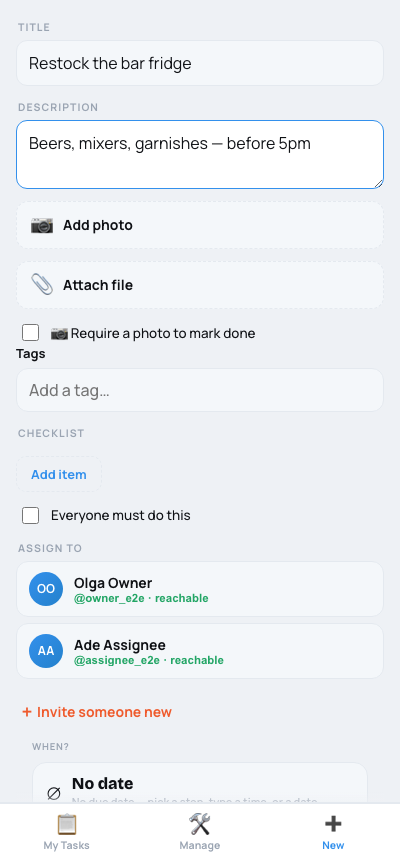
From the Mini App cockpit you can: create tasks and assign them to workers, set due dates, create departments (e.g. Kitchen, Front Desk), invite workers into your org, configure silent hours, recurring task schedules, cleanup TTL, escalation settings, and language preferences.
Create-task screen with assignee picker, due date, proof toggle and checklist
Create a task — assignee, due date, proof, checklist
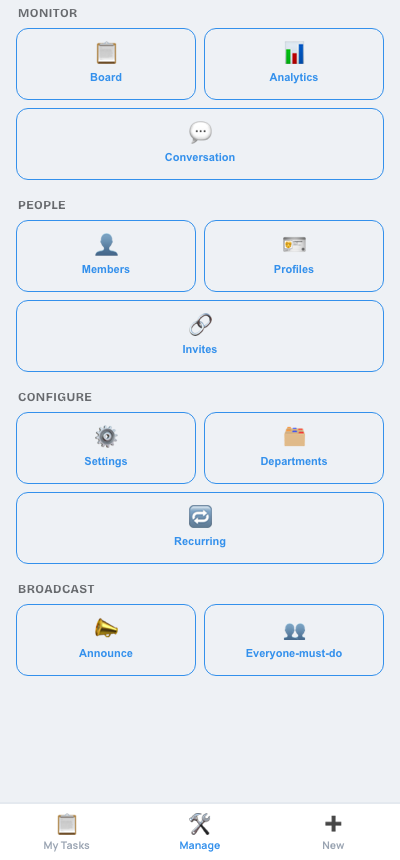
Manage hub tile grid
The Manage hub — board, people, settings, broadcast
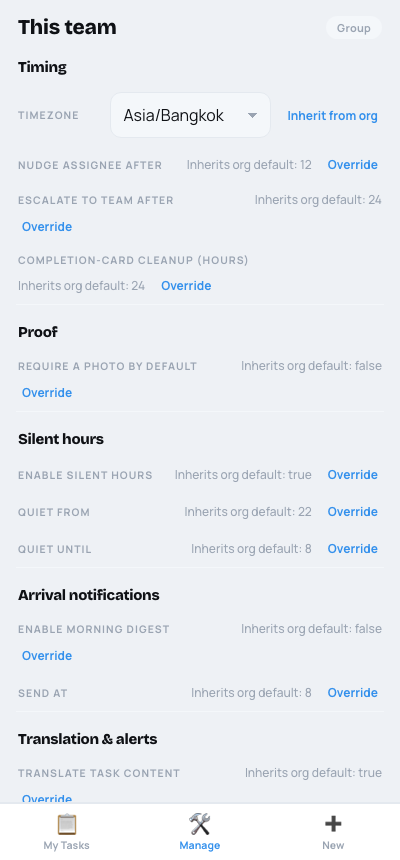
Team settings panel
Team settings — timing, proof, silent hours, translation
// for workers

Worker flow

Workers don't need to do any setup — just activate once and everything comes to you.

  1. 1 Tap Activate on the pinned card. When you join a group that uses TaskGlot, you'll see a pinned card. Tap Activate, then press START in the bot DM that opens. This turns on your DM reminders.
  2. 2 Get tasks via DM. When a manager assigns you a task, you'll get a DM from the bot. It shows the task in your own language with the due time. Tap the button to open it in the Mini App.
  3. 3 Open the Mini App. Tap the task card in the group → the button opens the Mini App. You can see all your tasks, their status, and any comments from your manager. Everything is in your language.
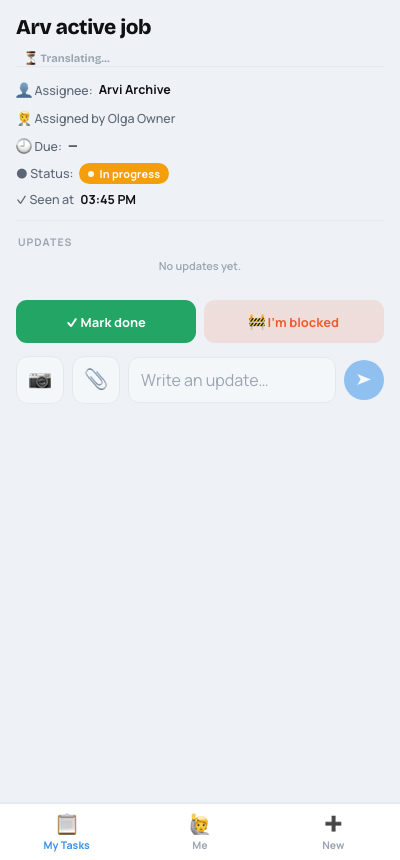
  4. 4 Mark seen, then done. Tap Seen when you've read the task — this acknowledges it. Tap Done when the work is complete. The group board updates automatically.
  5. 5 Post proof if required. Some tasks require a proof photo. You'll see a camera icon — tap it to upload a photo directly in the Mini App. Once proof is posted, the task can be marked done.
  6. 6 Tick checklists. Some tasks come with a checklist. Open the task in the Mini App and tick each item as you complete it. The progress shows on the board card.
Don't post messages in the group. The group is the board — messages posted there are removed automatically. Do everything in the Mini App: tap a task card's button or open the app via the bot's name.
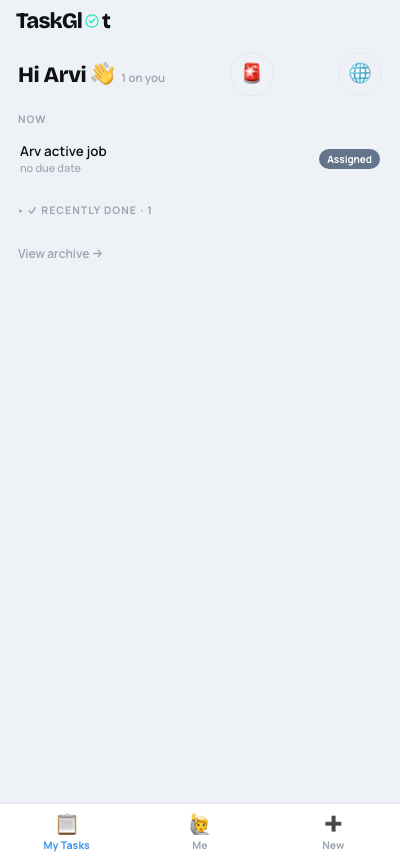
Worker My Tasks inbox
Your inbox — Now / Recently done, in your language
Task detail with Mark done and I'm blocked actions
A task — Mark done, I'm blocked, post an update
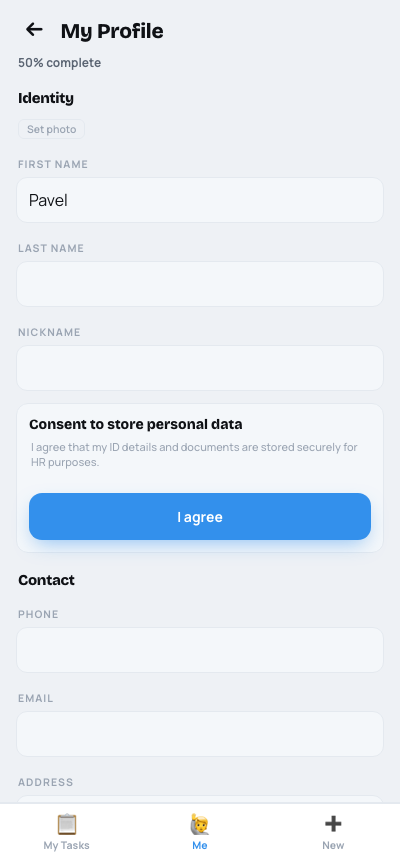
Worker profile self-edit with consent
Your profile — fill details, consent for sensitive fields
// how tasks work

Task lifecycle

Every task moves through a clear set of states from creation to done.

Assigned
Seen
Done
  • Assigned — the manager creates the task and assigns it. The worker gets a DM notification. The task card appears on the group board.
  • Seen — the worker taps Seen. This acknowledges the task. The manager can see acknowledgement on the board.
  • Done — the worker completes the work and taps Done (and posts proof if required). The card updates on the board.
  • Blocked — the worker can mark a task blocked if something prevents completion. The manager is notified. A blocked task can be resumed once the blocker is cleared.
  • Recurring tasks — tasks can recur daily, weekly, or on a custom schedule. Done a recurring task → a fresh copy spawns automatically for the next cycle.
  • Due dates & reminders — every task can have a due date and time. Reminders fire automatically in the worker's DM before the deadline, and escalate to the manager if the task goes overdue.
  • Escalation — overdue tasks first nudge the worker, then ping the manager (and optionally @-tag the group). Managers can also trigger escalation manually from the Mini App at any time.
  • Proof-required — managers can mark a task as requiring photo proof. The Done button is only enabled after a proof photo is uploaded in the Mini App.
  • Checklists — tasks can carry a step-by-step checklist. Each item is tickable. Checklist progress is shown on the board card and in the Mini App task view.
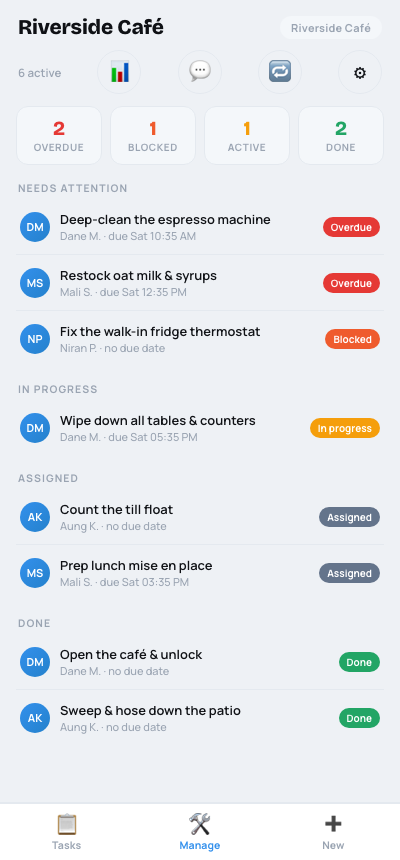
Owner team board with status counts and a task row
The board — overdue / blocked / active / done at a glance
Task detail showing status and actions
Status moves Assigned → Seen → Done, right on the task
// the board

The board & reminders

Every active task has exactly one card pinned in the group. It shows a status dot (⚪ assigned · 🟡 in progress · 🟠 blocked · 🔴 overdue · 🟢 done), the title, who it's assigned to, the due date, and inline action buttons for the assignee. The card updates itself in place — it's never re-posted, so the group stays tidy. When a task is done, the live card is replaced with a compact completion summary that clears automatically.

Reminders & escalation ladder

  1. 1At the due time — the worker gets a DM to post an update. The manager gets a one-time overdue alert with a button to ask the team for help.
  2. 2~12h overdue (default) — the worker gets an urgent "last warning" DM before the wider team is pulled in.
  3. 3~24h overdue (default) — the bot posts in the group, @-mentioning the worker and asking the team to step in.
  4. 4Manager can escalate anytime — trigger the team call-out from the Mini App without waiting (60-minute cooldown between manual escalations).
  • Auto-extend — if an overdue worker posts a real update, the due date extends by one day (once per occurrence) and reminders reset. The worker gets a confirmation DM.
  • Silent hours — by default no task pings overnight (22:00–08:00 in the group timezone); held notifications send after the window. Urgent 🚨 alerts bypass this.
  • Morning digest — optional daily DM summary of each person's overdue and due-today tasks at a set time. Off by default.
// where everything happens

The Mini App

The Mini App is the full interface for TaskGlot — no extra app to install, it runs inside Telegram. Open it by tapping any task card's button in the group, or via the bot's profile → Open Mini App.

  • Home — your task list at a glance: pending, overdue, and recently done.
  • Task view — full task detail, checklist, proof photos, comments, and history. Tap Seen / Done / Blocked from here.
  • Create task — managers only. Set title, assignee, department, due time, recurrence, proof requirement, and checklist.
  • Settings — admin panel for the group: silent hours, escalation thresholds, cleanup TTL, language gates, and org management.
  • Org — manage your organisation: departments, member roles, invites, and multi-group coordination.
The group is the board, not the chat. Post nothing in the group — the bot removes member messages automatically to keep the board clean. Do everything in the Mini App.
Mini App home / My Tasks
My Tasks — the inbox everyone starts on
Manage hub tiles
Manage — the manager cockpit (board, org, settings)
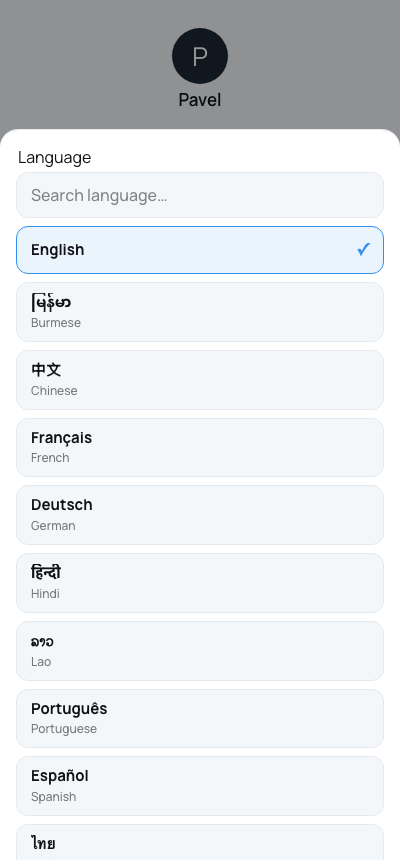
Language picker with native language names
Language — 18 interface languages, one tap
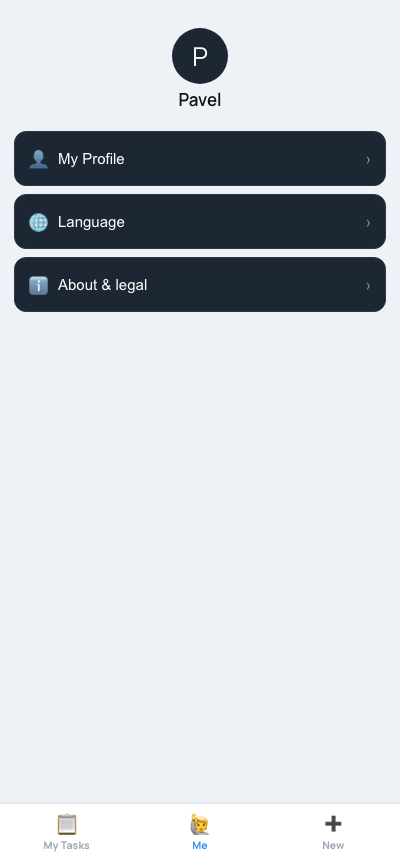
Worker Me tab
Me — profile, language, and about (workers)
// for multi-team managers

Working across teams

If you manage more than one Telegram group, TaskGlot links them into one organization automatically, with a unified cockpit across all your teams.

  • Org roster — every member across all your teams in one list, showing who spans multiple teams.
  • Departments — defined once at org level, assigned per team. Assign tasks to a whole department pool (any member can claim), filter analytics, and target announcements.
  • Invites — create single- or multi-use invite links scoped to one or more teams; workers tap to join automatically.
  • Announce — DM a whole team, a department, or both (DM + a group post).
  • Everyone campaigns — a task every member must complete individually; the bot fans out one task per person and a rollup card tracks collective progress.
  • Org board & analytics — all open tasks across teams in one urgency-sorted view, plus aggregate performance.
// your details

Your profile

Keep your key details in one place inside the bot. Your manager can see non-sensitive fields; sensitive identity fields require your explicit consent and are encrypted at rest.

  • Contact — phone, email, home address.
  • Emergency contact — name, phone, relationship.
  • Employment — job title, start date.
  • Identity (consent-gated) — passport number, national ID, date of birth. Filled only after you consent; withdraw anytime.
  • Documents & avatar — uploaded photos/PDFs and your profile photo.
Where to edit: workers open Me → My Profile; managers tap the My Profile card on Home. Managers can see a completeness percentage and fill fields on your behalf. Incomplete profiles may get a throttled DM nudge (at most one per 12 hours).
// multilingual

Translation

TaskGlot automatically translates task content into each worker's language — no setup required per person. When a manager creates a task in English, a Thai worker sees it in Thai, a Burmese worker in Burmese, and so on. Translation runs in the background within seconds and covers titles, descriptions, checklist items, and comments. A 🌐 badge marks translated text; tap Show original to see the source.

Content translation (12 languages): English · Thai · Burmese · Ukrainian · Lao · Khmer · Chinese · Hindi · French · German · Portuguese · Spanish.

Interface (18 languages): the 12 above plus Dutch, Polish, Indonesian, Vietnamese, Bengali, and Nepali.

Set your language from the 🌐 globe on My Tasks (or Me → Language); your choice saves across devices. If a manager enables Companion chat, the bot also posts translated versions of free-text group messages inline below the original.

// urgent

Raising an alert

Need a manager's attention right away? Tap the 🚨 button on the My Tasks screen (workers only) to raise an emergency alert.

  • FYI — a heads-up, sent as a muted notification (won't ring during silent hours). The manager can acknowledge it.
  • Urgent — bypasses silent hours and rings regardless of time; repeats every 10 minutes for up to 2 hours until acknowledged.

Pick a category (VIP arrived · Government/official check · Needs attention · Safety concern · Other), add an optional note and photo, and send. Every reachable manager gets a DM with your note translated into their language and an "I've got this" button. When one taps it, the others see "Handled by [name]" and you get a "[Name] is on it" confirmation. Rate limit: one FYI / 5 min, one Urgent / 10 min per group.

// for managers

Settings managers can tune

All settings live in the Mini App under Manage → Settings, per team and (with multiple teams) at org level as defaults. Team settings override org defaults; org defaults override system defaults.

  • Timezone — local timezone for due dates and the board (default Asia/Bangkok).
  • Silent hours — overnight quiet window (on, 22:00–08:00).
  • Assignee nudge (hours) — delay before the urgent "last warning" DM (12h).
  • Group escalation (hours) — delay before the group @-mention call-out (24h).
  • Morning digest & hour — daily per-person summary DM (off; 08:00).
  • Proof required by default — new tasks require a proof photo (off).
  • Completion card cleanup (hours) — how long the done card stays in the group (24h).
  • Translation & companion chat — auto-translate tasks/comments (on when configured); inline group-message translation (off).
  • Emergency alerts — allow workers to raise 🚨 alerts (on).
// support

Getting help

Have a question or hit a problem? The best place to ask is the TaskGlot support group.

Support channel: coming soon — the official support group is being set up. Check back here or on the TaskGlot website for the link when it launches.

The Terms of Use and Privacy Policy are available from Me → About (workers), Manage → Settings → About (managers), and the links in the first-launch consent screen. TaskGlot is currently a free, early-access alpha — please don't store anything you can't afford to lose.

// walkthroughs

Video walkthroughs

Short screen recordings covering the key flows. Coming soon.

Manager setup

Add bot → admin → /admin → first task

Worker activation

Tap Activate → START → receive task → mark done

Proof & checklists

Upload photo proof and tick off a checklist

Recurring tasks

Set up a daily or weekly recurring task

no install · works in telegram

Ready to get started?

Open TaskGlot